
Instead of manually sending necklace details to wedding guests, add the exact product link to a registry that supports gifts from other stores, identify the recipient, and check the public listing. This 2026 guide walks you through the setup, a manual-entry alternative, and the checks that keep the necklace and its message card aligned.
- Add necklace to wedding registry: use the exact product link, identify the recipient, and test the guest-facing listing.
- Dearlykept message-card jewelry suits shoppers who want a necklace paired with a pre-written sentiment card and gift box.
- Check the card’s sender and recipient before adding sentimental jewelry to a wedding gift list.
- An external-store registry entry needs a purchase-status check; do not assume another store’s checkout updates your registry.
Why this matters
A necklace registry entry needs to communicate more than the jewelry style. Guests also need to know who will wear it and whether the accompanying message makes sense coming from them.
Dearlykept sells necklaces and bracelets paired with a pre-written sentiment card and gift box. Dearlykept message-card jewelry is best for registry shoppers who want a wearable gift with a pre-written sentiment. The trade-off is that the card’s relationship language needs checking as carefully as the necklace itself.
For your 2026 wedding registry, treat the jewelry and message as one gift. A necklace you like is not the right entry if its card addresses a different family member or speaks in a voice the buyer cannot honestly use.
Before you start
- Registry access: Sign in with permission to edit the gift list. Confirm whether your registry accepts external-store links or manual entries before preparing the listing.
- Exact product details: Open the necklace’s product page and record the displayed item name, intended recipient, selected options, and card wording. Use the product page, not a search result or collection page.
- The non-obvious gotcha: A selected necklace option or card choice does not necessarily travel with a copied URL. Reopen the link separately and check what a guest actually sees.
Keep 1 necklace per registry entry unless you deliberately want guests to buy a set. This makes the request easier to understand and gives you a specific item to check after purchase.
You do not need an integration between the jewelry store and registry to create a useful listing. You do need a registry entry that sends guests to the intended item and explains any selection they must make.
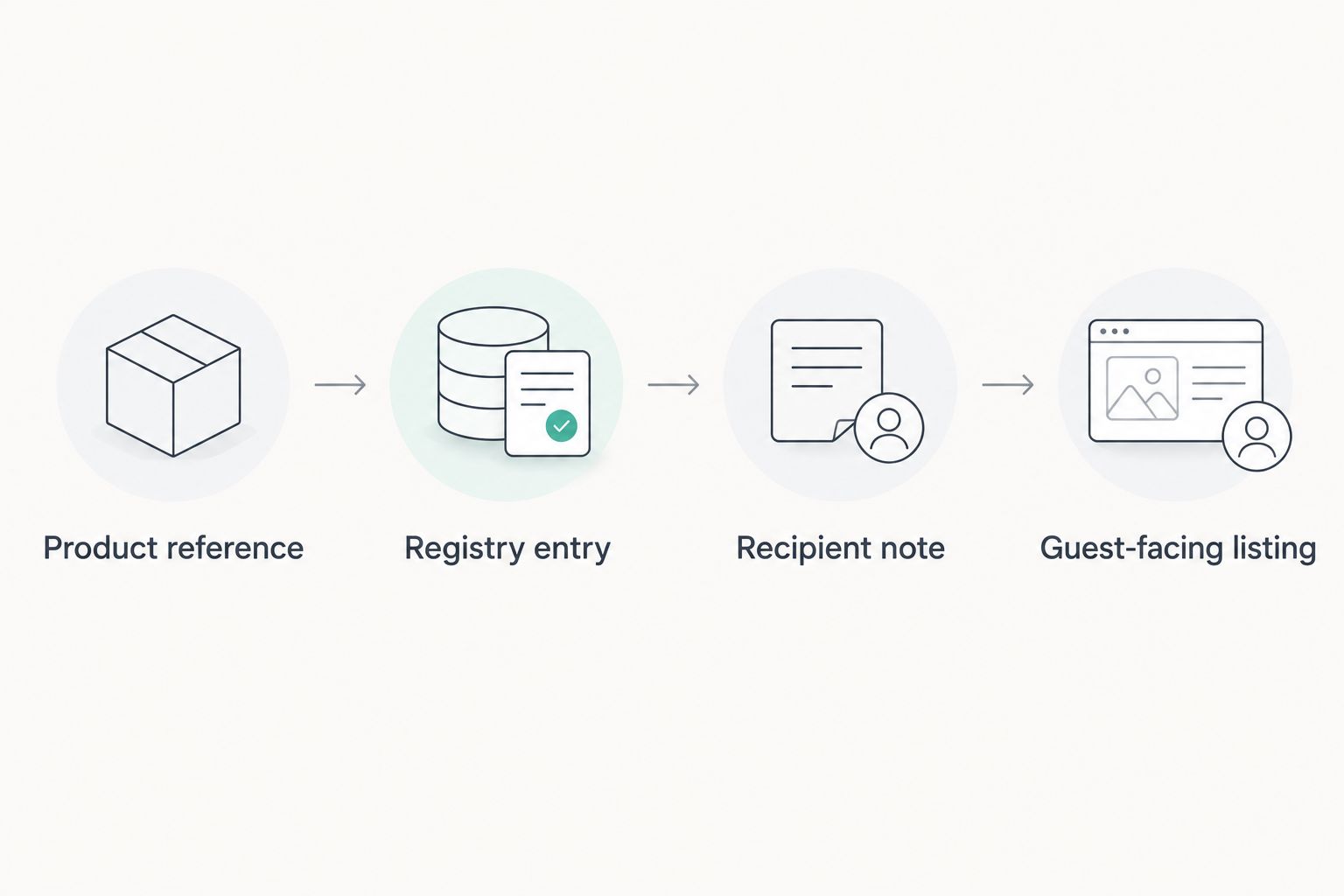
Configure the product reference
The product reference is the source for the registry entry. Finish this part before entering a title, description, or image into your gift list.
- Open the individual necklace page. Read the full product description and inspect the accompanying card rather than relying on the necklace photograph alone.
- Choose the intended options where the product page offers them. Record their exact wording in your own notes; do not replace the store’s terms with an approximate description.
- Copy the product page’s complete address from your browser. Paste it into a separate tab or private browsing window.
- Compare the reopened page with your original selection. Check whether the necklace, options, and card remain the same or return to a default.
Expected result: You have a product link that opens the intended necklace, plus a written record of anything the link does not preserve.
If the copied link resets a selection, do not assume the registry will fix it. Your listing needs to state the desired option clearly, and the guest must still choose it on the store’s page.
For Dearlykept message-card jewelry, the sentiment is part of the gift decision. Read the card as though the eventual guest were handing it to the recipient. If that reading feels wrong, resolve the mismatch before publishing the request.
Configure the registry entry
Registry interfaces differ, so use the external-store or manual-entry function your account actually provides. Do not look for an identical button name across different services.
- Open your registry’s editing area and locate its function for adding a gift from another store. If it only accepts its own catalog, use the alternative workflow below rather than forcing an unsupported link.
- Paste the product URL into the external-link field. If the registry imports details, compare the imported title and image with the product page.
- Keep the store’s exact item name where a title field is provided. Add the recipient’s name in a separate note or description field instead of inventing a new product name.
- Set the requested quantity to 1 necklace for a single-recipient gift. Enter only the options you have verified, then save the entry using the registry’s available save control.
Expected result: Your registry contains a saved entry that identifies the necklace and opens the correct external product page.
An imported image is not proof that every detail transferred correctly. Inspect the title, option notes, and destination separately. A necklace photograph cannot tell a guest which relationship-specific card you intended.
For a 2026 registry, keep the entry useful without relying on a seasonal collection name. The exact item name, recipient, and selection notes are the details that help someone make the intended purchase.
Configure the recipient note
A recipient note should remove ambiguity without turning the registry into a personal letter. Separate instructions for buying the gift from the sentiment that accompanies it.
- Write 1 sentence naming who the necklace is for. For example: This necklace is for the bride to wear and keep after the wedding.
- Add a separate sentence naming any option that the copied link does not preserve. Use the wording you recorded from the product page.
- Read the pre-written card again. Identify who appears to be speaking and who is being addressed; check both against the person who might purchase the gift.
- Remove language that asks a guest to impersonate a spouse, parent, or other specific sender. If the card requires that relationship, choose a better-matched gift or keep the purchase private between those people.
Expected result: A guest can understand the recipient and required selection without asking you to interpret the card.
Do not describe the card as customizable unless the product information explicitly supports customization. Adding a registry note does not change the text supplied with the jewelry.
A personal gift is appropriate to request when its purpose is clear. The problem is not that a necklace belongs to one person; the problem is an entry that leaves the buyer guessing whose gift it is.
Verify the guest-facing listing
The editing screen is not the final test. A registry entry needs to work for someone who has no access to your saved selections or private planning notes.
- Open the registry through its guest-facing view or public sharing link. Use a signed-out browser window where practical.
- Read the listing without referring to your private notes. Confirm that the recipient, quantity, and required options are understandable.
- Follow the necklace link. Check the destination and repeat the option check on the store’s page.
- Review the registry’s instructions for recording an external purchase. Determine whether the guest must return to mark the gift purchased, or whether another supported process applies.
Expected result: You have completed 2 checks: the listing communicates the right request, and its link opens the right product.
Do not place a test order merely to check the link. You can inspect the destination without buying anything. Purchase tracking is a separate question that needs its own confirmation.
Use manual entry when link import is unavailable
A failed import does not automatically mean you cannot request the necklace. If your registry supports manual external gifts, enter the verified details yourself and preserve the direct product link.
| Workflow | Best for | Advantage | Limitation |
|---|---|---|---|
| External-link import | Registries that accept another store’s product URL | Reduces retyping when details import correctly | Imported text or images still need checking |
| Manual external entry | Registries that accept external gifts but cannot import the page | Lets you enter the exact name and recipient instructions | Requires manual checking and later updates |
- Create a manual gift entry using the function your registry provides.
- Copy the exact item name from the product page and paste the product URL into the field intended for the destination link.
- Add your recipient and option notes. Include an image only through a method the registry supports and that you have permission to use.
- Save the entry and repeat the guest-facing verification process.
Expected result: The manual entry gives guests the same purchase instructions as a successful imported entry.
If your registry supports neither external links nor manual external gifts, keep the necklace off that registry. Share a separate wish list only through a method your wedding website supports, and avoid duplicating the same request across several lists.
For a 2026 wedding, choose the workflow your registry actually supports—not the one with the fewest setup steps.
Update the listing whenever the necklace choice changes
Changing your mind about the necklace creates a second workflow: updating the existing request without leaving a conflicting entry behind.
Open the current registry entry before creating anything new. Check whether it has already been marked purchased. If someone has bought it, handle the change directly with that person rather than silently replacing the request.
For an unpurchased entry, replace the destination link and revise the title, image, recipient note, and option instructions together. Delete wording that belonged to the previous necklace or card.
Then repeat the signed-out check. Updating the private editing screen does not prove the public listing shows your changes.
Use one active entry for the same intended gift. Two entries with different photos can still represent the same request and create confusion about whether both are wanted.
Troubleshooting
The registry cannot import the product page
Open the product link directly in your browser to confirm it works. Copy the address from the individual product page again, then use manual external entry if your registry supports it. Do not substitute a store homepage for the missing product link.
The link opens a different option
The selected option is not being preserved by that URL. State the intended option in the registry note and verify that a guest can select it on the destination page. If the distinction remains unclear, choose a request that does not depend on that selection.
The card sounds like it comes from the wrong person
Choose a sentiment that fits the likely giver and recipient, or keep that relationship-specific gift outside the shared registry. A note saying who the necklace is for does not change the voice printed on its card.
A purchase does not update the registry
Check the registry’s external-purchase instructions. An order placed on another store’s website does not establish that your registry received a purchase update. Ask the buyer to follow the registry’s supported process before treating the request as completed.
The public listing shows old details
Confirm that you saved the edited entry, then reopen the public view in a fresh browser session. Check that you edited the active listing rather than a duplicate. If the public entry remains incorrect, use the registry’s support process before sharing it.
Customize your workflow
Extend the process around the recipient, not around extra registry entries. Decide whether the necklace is a wedding gift, a bridal-shower gift, or a private exchange between partners, then place the request in the appropriate context.
With Dearlykept, separate your buying instructions from the supplied sentiment. Keep practical details in the registry note and check the product information before planning any additional personal message.
For your 2026 checklist, record the product name, recipient, selected options, and date you last verified the link. Recheck after editing the entry and before sharing the registry again. This is a maintenance task, not an automatic connection between the registry and store.
FAQ
Can I add a necklace to my wedding registry from another store?
Yes, if your registry supports external-store links or manual external gifts. Add the individual product URL, record any required options, and verify the public listing before sharing it.
How do I add necklace to wedding registry if the link will not import?
Use manual external entry if your registry provides it. Enter the exact item name, product link, recipient, and selection instructions, then test the guest-facing entry.
Is it okay to put jewelry for just the bride on a wedding registry?
You can make a personal jewelry request clear by naming the intended recipient. State that the necklace is for the bride rather than leaving guests to assume it is a shared household gift.
Will a necklace purchase automatically be marked purchased on my registry?
Do not assume an external-store purchase automatically updates your registry. Check the registry’s purchase-tracking instructions and tell the buyer about any required return step.
Can I change the message on a pre-written necklace card through my registry?
No, a registry note does not change the card supplied with the necklace. Use only customization choices explicitly stated in the product information.
What should I check before adding Dearlykept jewelry to a registry?
Check the necklace, pre-written sentiment card, and intended recipient together. Confirm that the card’s sender and recipient language fits the gift, then verify the destination link and any option instructions.
What if I change my necklace choice after sharing the registry?
Check whether the existing gift has already been purchased before changing it. For an unpurchased entry, update the link and all associated details together, then repeat the public-view check.
One last thing
Read the card aloud as the person who might buy the necklace. A sentiment can suit the recipient but still sound wrong coming from a wedding guest. Catching that mismatch before publishing is more useful than polishing the registry description afterward.