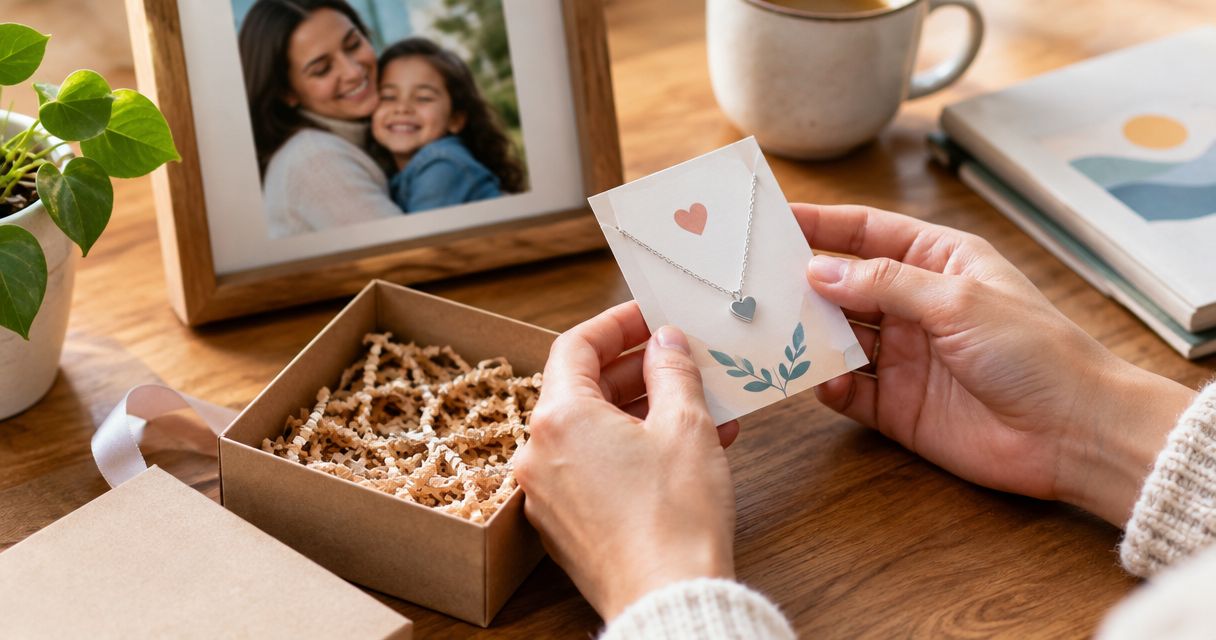
Instead of sending guests a necklace link separately, add the specific Dearlykept item to your Zola registry through Zola’s other-store gift feature, then check the listing as a guest. This 2026 guide walks you through choosing the right message card, importing the item, and checking where guests go to complete their gift.
- To add necklace to Zola registry, use Zola’s other-store gift feature with the specific necklace page.
- Dearlykept message-card jewelry suits shoppers who want a necklace paired with a pre-written sentiment and gift box.
- Check the card’s sender and recipient before adding sentimental jewelry to a wedding registry.
- Preview the guest experience; adding an external item does not establish the retailer’s delivery or return terms.
Why this matters
A message-card necklace has two parts to get right: the jewelry and the words accompanying it. A necklace you love can still be the wrong registry choice when its card speaks from a spouse, parent, or daughter rather than the person giving it.
Dearlykept message-card jewelry is best for shoppers who want a wearable gift paired with a pre-written family sentiment. Browse Dearlykept to choose the item, but use its specific product page—not the storefront homepage—when adding it to Zola.
Treat this as an external-gift workflow, not a connection between customer accounts. You are creating a registry entry that points guests toward your intended gift; you are not establishing shared order tracking or shared store policies.
For your 2026 registry, the useful test is simple: can a guest identify the necklace, understand the card, and see how to give it without asking you?
Before you start
- Open your accounts and materials. Sign in to the Zola account that manages your registry. Keep 2 browser tabs open: your registry and the specific necklace page.
- Record the exact choice. Note the item title, selected options, and pre-written card wording. Use only details shown on that item’s page; do not infer chain measurements, materials, or personalization.
- Check the non-obvious gotcha: the card’s point of view. Read who is speaking and who receives the message. A spouse-to-spouse sentiment is not interchangeable with a general wedding gift from any guest.
Use a desktop browser for the browser-button route below. Follow Zola’s current setup instructions for its Add to Zola browser button rather than trying to install a desktop tool inside a phone browser.
Necklace selection
Choose the gift before importing it
- Open the necklace you actually want. Avoid a search-results page or collection page, because guests need a specific item rather than a choice of unrelated gifts.
- Select the intended options shown on the retailer’s page. Write down any selection that matters, including the card version, when the page offers a choice.
- Read the complete sentiment. Check whether the wording fits a gift from your likely registry guests, not just whether it sounds meaningful in isolation.
- Copy the product-page address and keep your notes beside it. You will use both when checking the imported entry.
Expected result: you have 1 necklace selected, its specific page open, and a clear record of the intended card and options.
The benefit of choosing a pre-written card is that you can assess the actual sentiment before requesting the gift. The limitation is equally important: the wording is already written. Do not assume that adding a registry note changes the card, or that the retailer offers custom text.
If you are still deciding whether the item belongs on a public wish list, the guide to adding a necklace gift to a wedding registry covers the broader gifting decision.
Zola gift entry
Add the necklace from its retailer page
- Open Zola’s instructions for adding gifts from other stores while signed in to your registry account.
- Follow those instructions to set up the Add to Zola browser button in a supported browser. Use the instructions attached to your current Zola account rather than an old screenshot or tutorial.
- Return to the specific necklace page. Keep the intended options selected, then activate Add to Zola.
- Review the item information presented by the tool. Compare the title, image, and destination with the retailer page; correct editable details when the import does not identify the intended necklace clearly.
- Complete the remaining prompts to add the item. Read any explanation of how guests will give an other-store gift before accepting that arrangement.
Expected result: the necklace appears in your registry’s management view, with information that identifies the intended gift.
Importing an item is not the same as checking the finished listing. A product image does not necessarily show every selected option, and the imported title alone does not establish which message card you intended.
For this 2026 setup, rely on the controls and explanations in your live Zola account. If your account presents a different other-store entry method, use that method and apply the same item-by-item checks below. Do not force instructions for a browser button onto an interface that does not present it.
Guest-view verification
Check the listing before sharing your registry
- Open the registry’s guest-facing view. Locate the necklace as someone shopping for you would.
- Inspect the title and image. They should distinguish the intended necklace from similar items without requiring a guest to interpret your private notes.
- Open the item destination. Confirm that it reaches the intended retailer page rather than a homepage, a search page, or another necklace.
- Read the guest instructions for completing the gift. Follow the flow far enough to understand it, but stop before placing an order or submitting payment.
- Where Zola provides an editable item note, add only the selection details a guest needs. Keep relationship-specific instructions private when they would confuse other guests.
Expected result: you can explain the guest’s next action in one sentence, and the listing identifies the necklace you selected.
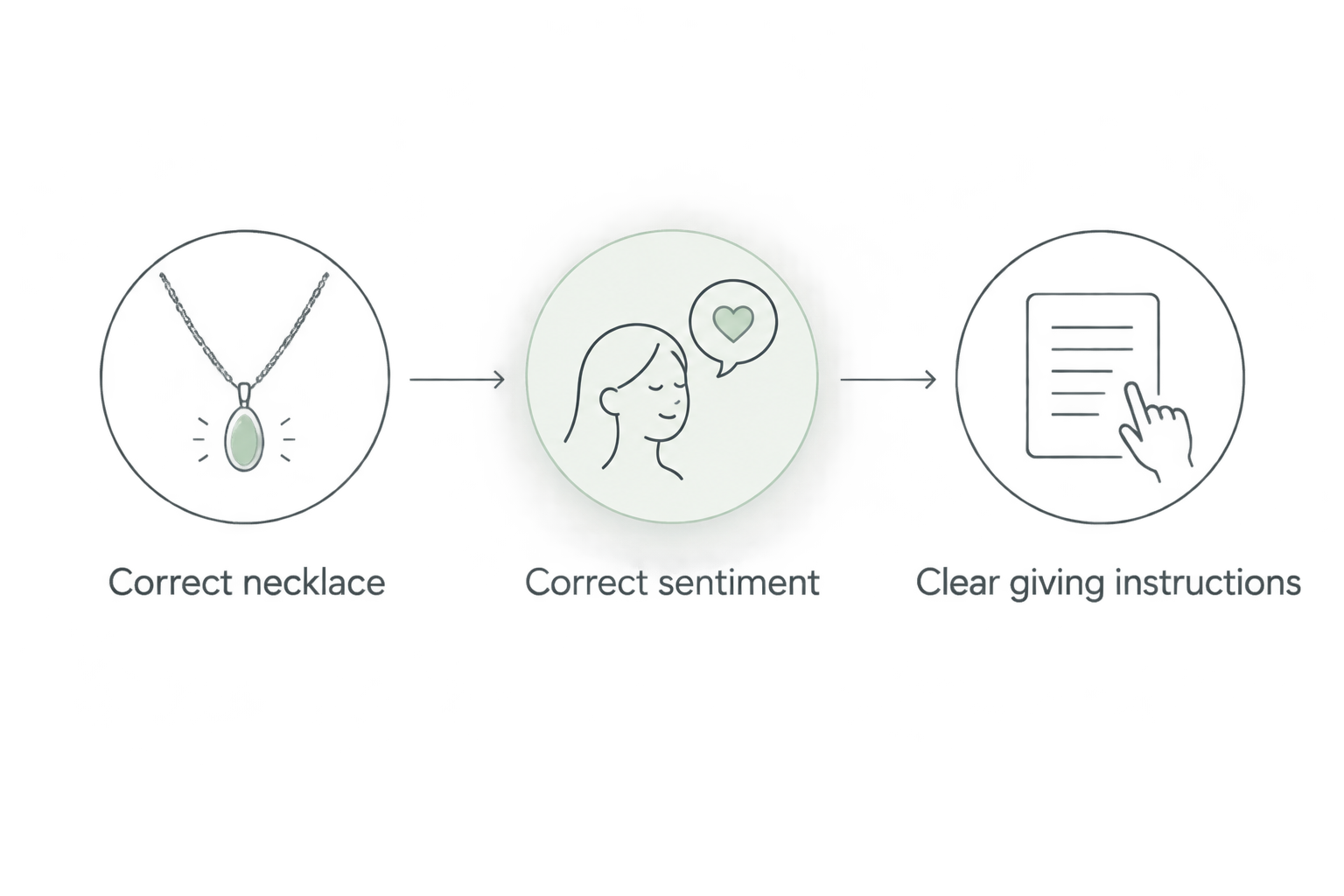
Use these 3 checks before sharing: correct necklace, correct sentiment, clear giving instructions. They test the things a product import cannot decide for you.
Do not place an actual order merely to test the registry entry. Inspecting the destination and reading the guest instructions is the verification task; completing a purchase is a separate decision.
Second workflow: a gift from your partner
A public registry entry is not always the right home for an intimate message. When the card speaks specifically from your partner to you, a private gift conversation keeps that meaning intact.
Best for partner-specific wording: share the exact necklace page privately instead of inviting every guest to choose it. The benefit is a clear sender; the drawback is that the request sits outside your shared registry list.
| Workflow | Best for | Advantage | Limitation |
|---|---|---|---|
| Public Zola entry | A necklace and sentiment suitable for registry guests | Keeps the request alongside your other gifts | Relationship-specific wording can confuse the giver |
| Private partner request | A card written from one partner to the other | Keeps the sender and sentiment aligned | Requires a separate conversation outside the registry |
To use the private workflow:
- Send your partner the specific product-page address, not just a screenshot of the pendant.
- Explain which card wording you mean and why it fits the occasion.
- Agree whether the necklace should also remain on the public registry. Avoid leaving an ambiguous request in both places.
Expected result: the intended giver understands both parts of the gift—the necklace and its message—without other guests needing to interpret a personal exchange.
For a 2026 wedding, decide the gift’s role before deciding where to list it. Bridal jewelry, a private partner gift, and a general guest request are different intentions even when they involve the same necklace.
Troubleshooting
The browser button does not appear
Reopen Zola’s current browser-button setup instructions and confirm that you completed the installation for the browser you are using. If you are on a phone, switch to a desktop browser for this route rather than looking for a desktop control inside the mobile browser.
Do not install an unrelated tool just because its name resembles Zola’s feature.
The imported image or title is wrong
Return to the retailer’s specific product page and compare it with the imported entry. Correct any editable information before saving, or remove the incorrect entry and start again from the intended page.
A recognizable image helps, but the destination is the deciding check. Open it from the guest-facing listing.
The selected option is unclear
Record the intended selection in an editable registry note if that field is offered. Then open the retailer destination as a guest and check what the page actually shows.
Do not assume that a selected option carries through merely because the main product address is correct. If the guest must make a selection, make that instruction explicit.
The card sounds wrong for a wedding guest
Reconsider the workflow rather than trying to explain away the mismatch. Choose wording that suits a general gift, or move the request to a private conversation with the intended giver.
A registry note explains your preference. It does not rewrite the retailer’s pre-written sentiment card.
The guest’s next step is unclear
Read Zola’s explanation attached to the external item and inspect the guest-facing flow. Do not promise guests that Zola will place the retailer order, handle delivery questions, or apply its own policies without an explicit explanation supporting that claim.
If you cannot describe the next action clearly, resolve that uncertainty before sharing the entry.
Customize your workflow
Once the listing works, add useful context rather than a long backstory. Where an editable note is provided, identify the intended recipient, the relevant selection, and whether the necklace is meant for wedding-day wear or another occasion.
Keep retailer requests separate from registry notes. Writing a request on Zola does not establish that Dearlykept will receive it or fulfill it as an order instruction.
For message-card jewelry, a separate personal note can explain why you chose the gift without pretending to replace the printed card. Read the guide to adding your own note to a pre-written message-card necklace for that distinction.
Before sharing your 2026 registry widely, repeat the guest-view check after any change to the necklace or its intended options. Updating your own planning notes is not a substitute for inspecting what guests can see.
FAQ
How do I add a necklace to my Zola registry from another store?
Use Zola’s other-store gift feature from the specific necklace page. Follow the current setup instructions in your account, review the imported item, and inspect the guest-facing listing before sharing it.
Can I add a Dearlykept necklace to my Zola registry?
Use Zola’s other-store gift workflow to attempt the addition from the specific Dearlykept necklace page. Confirm that the entry saves correctly and that its guest-facing destination identifies the intended item.
Should I use the store homepage or the necklace page?
Use the specific necklace page. A homepage does not tell guests which necklace, message card, or selectable options you intended.
Can I add the necklace from my phone?
Use a desktop browser for the browser-button workflow described here. For a phone-based method, follow the current options and instructions presented by Zola rather than trying to install a desktop browser button.
Will adding the necklace to Zola change its message card?
No—creating a registry entry does not rewrite a pre-written sentiment card. Choose wording that fits the giver and recipient, and do not treat a registry note as a customization request to the retailer.
Does Zola handle delivery and returns for an external necklace?
Do not assume that an external registry entry transfers delivery or return responsibility to Zola. Read the gift’s checkout instructions and the terms of the party taking the order.
Should a necklace from my partner go on the public registry?
A private request is the clearer choice when the card speaks specifically from your partner to you. A public listing works better when the sentiment makes sense from the guests who can see it.
One last thing
Read the message card aloud as though a wedding guest were giving it to you. If the speaker suddenly sounds wrong, the problem is not the registry setup—it is the match between sender and sentiment.
That final check protects the reason you chose message-card jewelry in the first place. Keep the necklace public only when both the gift and its words fit the people using your registry.